
How to navigate WordPress
The biggest website builder on the net, WordPress is our most commonly requested platform. For good reason! It's one of the easier CRMs to use and offers a lot of flexibility and customisation. If you've just had a new website built on WordPress from ninetyblack, we'll send you a complete user guide with loads of useful tips and tricks, but for now here's a quick guide on how to navigate your new site.Logging into WordPress
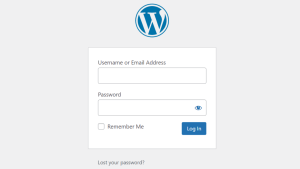
- Go to your website, add /admin to the end of the url (link) and sign in with your WordPress username and password (e.g. www.yourwebsite.com/admin). If you forgot your password, click the prompt to get a new one, or contact our support team to reset it.
Editing Pages
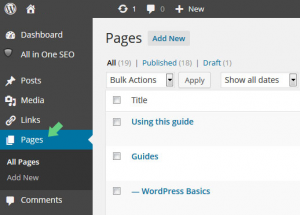
- Click on Pages in the left sidebar.
- Click on the name of the page to be edited.
- Edit as required and click on the update button.
Adding Images
Click on the Add Media button where you want to insert the image.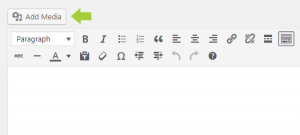 Select Upload Files if adding a new image or Media Library to select an image that's already on the website.
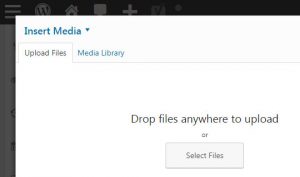 All the images uploaded to your website can be viewed and edited in the Media Library. Click Media in the left hand navigation menu of the dashboard to view them.